How a run works
Every import goes through two separate phases, and there is a human decision between them. This is the whole design of the app: phase one writes nothing at all.
- Point DataDock at a file
Upload it, paste a share link, pull it off an FTP server, or let a schedule fetch it. A zip becomes one job per file inside; a Google Sheet becomes one job per tab.
- It parses and resolves
Every row is matched against what is already in your store. Ragged rows, blank columns, duplicate headers and unknown columns all become warnings — never a rejected file.
- You read the diff
A per-row plan in your own column names, with counts of what would be created, updated and deleted. Nothing has been written to Shopify yet.
- You approve — then it applies
Only now does DataDock touch your store. Under ~1,000 records it uses plain GraphQL; above that it switches to bulk operations.
- Rollback stays available
Before each mutation an inverse patch is written to a journal. One click replays them in reverse.
Most bulk tools apply first and show you the damage afterwards. If a supplier sends a price list with a shifted column, you find out when your margins are wrong. Here you find out on the preview screen, before anything moves.
Installing
Install DataDock from the Shopify App Store, or open the install link you were given. Shopify shows you the access scopes first — read them; DataDock asks for exactly the scopes its sixteen data types need and nothing more.
After install the app lives in your admin sidebar under Apps → DataDock, with its own sub-navigation: Home, Import, Export, Jobs, Schedules, Servers and Plans.
Home opens on Recent activity — the last jobs, their state, and anything that needs your attention. A fresh install shows an empty state; that is normal.
The free Demo plan gives you every data type, the full diff preview and one-click rollback, capped at ten records per file. The point is that you can test the thing that actually matters — the preview and the undo — against your real store data before paying.
Order history older than 60 days
Shopify caps order exports at 60 days unless an app is granted read_all_orders, and that grant is only given after a listing review. If you need full order history, ask support to have it enabled for your store; until then, order exports stop at the 60-day boundary and say so.
Your first run, in five minutes
Do not start by writing a spreadsheet from scratch. Start by exporting what you already have — that gives you the exact column names DataDock expects, filled with real data.
- Export a small slice
Go to Export, choose Products, and run it. You get an XLSX with one row per variant and every column the app understands.
- Change one thing
Open the file, pick a handful of rows, and edit a single column —
Variant Priceis a good first test. Save it. Do not delete the columns you did not touch; blank cells are safe. - Import it back
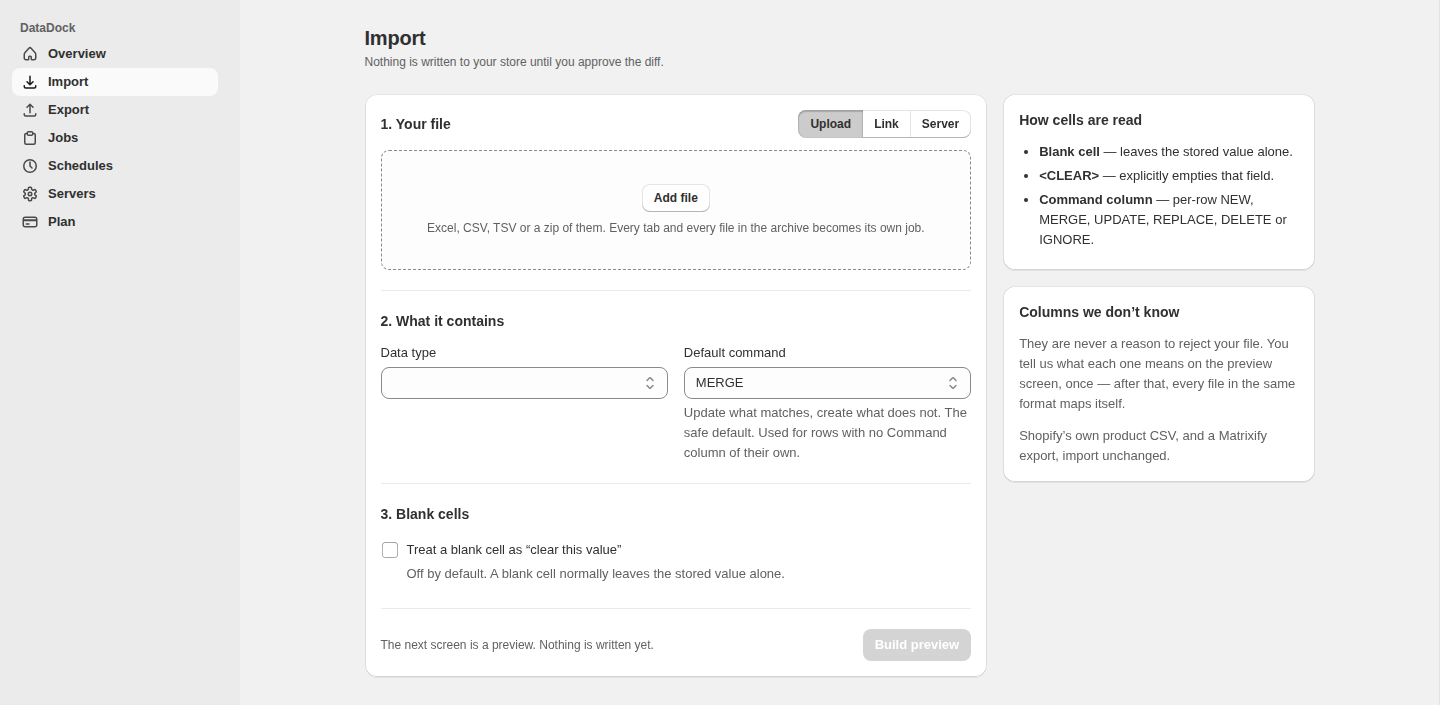
Import → Upload, pick the file. The job appears in Jobs and moves to Preview ready.
- Read the preview
Open the job. You should see exactly the rows you edited, and No change on everything else. If you see thousands of unexpected changes, stop and read How cells are read before approving.
- Approve, then roll back
Apply it, confirm the prices changed in your admin, then hit Roll back on the same job. Watch them return. Now you know what the safety net actually does.
Export a sheet and re-import it unchanged. A correct run reports everything unchanged and sends no images at all. If it wants to change rows you never touched, that is worth a support message — it means a column is round-tripping imperfectly.
Where your file can come from
The file does not have to live on your computer. DataDock can go and get it, which is what makes supplier feeds and recurring work possible.
Upload
Drag in an XLSX, CSV or TSV. The request body is the file, streamed straight to disk, so size is not a problem.
Any public link
Paste a direct URL and the server fetches it. Growth plan and above.
Google Sheets & Drive
Paste the share link as you copied it — it gets rewritten into a direct download. Every tab in the Sheet becomes its own job.
Dropbox & SharePoint
Same treatment: share links are converted into direct downloads automatically.
FTP, FTPS and SFTP
Save a server once under Servers, then pull a supplier's file by path — or have exports delivered back to it.
Zip archives
A zip is exploded and each file inside becomes its own job, so a supplier can send one bundle for a whole catalogue.
File formats
XLSX, CSV and TSV. Reading and writing are both streamed, so a 300,000-product export does not need 300,000 products' worth of memory.
Header matching is normalised, so Body (HTML) from a native Shopify export is recognised as-is. You do not have to rename columns to make an existing export importable.
How cells are read
This is the single most important page in this handbook. Read it before your first real import.
In DataDock, a blank cell means “leave this alone”. It does not mean “set this field to empty”. Clearing a value is always something you ask for explicitly.
A product whose Tags field currently reads sale, summer. Pick what the cell in your spreadsheet contains:
A blank cell is skipped entirely. The column is not even included in the mutation, so the stored value cannot be touched.
The three rules
- Blank cell → nothing happens. The field is not sent to Shopify at all.
- A value → that value is set, if it differs from what is stored.
- The literal text
<CLEAR>→ the field is emptied. This is the only way a blank result happens by accident-proof design.
There is a per-job toggle that makes every blank cell wipe the stored value instead. It is off by default and the confirmation names exactly what it will do. Turn it on only when you are deliberately replacing a whole field set — and read the preview line by line when you do.
Telling a row what to do: the Command column
Every row carries an instruction. By default it is MERGE — update what matches, create what does not — and you set that default on the Import screen under Default command. It is deliberately the forgiving one.
When rows need to behave differently from one another, add a Command column to the sheet and put one of these in it. A blank cell, or no Command column at all, falls back to the default you picked.
| Command | What happens |
|---|---|
| MERGE | Update the record if it matches, create it if it does not. The default. |
| NEW | Create only. If a record already matches, the row is reported as an error — “Already exists. Use MERGE or UPDATE.” — rather than quietly overwriting it. |
| UPDATE | Update only. If nothing matches, the row errors instead of creating something you did not ask for. |
| REPLACE | A full-object update. See the caveat below. |
| DELETE | Delete the matching record. |
| IGNORE | Skip the row entirely. Useful for leaving notes, totals or draft rows in a working sheet. |
Today REPLACE is applied as a full update, so child rows that are absent from your file — variants, addresses, collection rules — are kept rather than deleted. The preview says so on the row. If you need a variant gone, delete it explicitly rather than relying on its absence.
Comparison is type-aware
The preview would be useless if re-importing an export showed thousands of phantom changes, so values are compared by meaning rather than by text:
| In your file | In Shopify | Result |
|---|---|---|
| 10 | 10.00 | Same — no change |
| TRUE | yes | Same — no change |
| sale, summer | summer, sale | Same — tag order is ignored |
| 12.50 | 10.00 | Changed — shown in the diff |
Metafields
Metafield columns are written as Metafield: namespace.key — for example Metafield: custom.care_instructions. They are resolved when the file is parsed, because no two stores have the same metafields. Real exports also write a type suffix, like Metafield: custom.related [list.product_reference]; that is read and understood, though your store's own definition always wins, since that is the one Shopify validates against.
Columns we don't know
A supplier's file will not use your column names. When DataDock meets a header it cannot place, it does not reject the file and it does not guess.
The job page gets a Columns we don't know panel: each unrecognised header, the reason it could not be placed, and a dropdown to say what it means. You answer once.
- Map each column
Pick the field it corresponds to, or mark it as ignored.
- Re-check
The preview is rebuilt from the same file with your mapping applied. Still nothing has been written.
- It is remembered
The mapping is saved per shop and per data type, so the next file in that format maps itself.
Saved mappings start at Growth, but mapping a column is available even on Demo. A file the app cannot read is a question, not a wall.
Reading the preview
The preview is the product. It is worth knowing how to read it properly.
The tally
At the top: how many records would be created, updated, deleted and left alone. Check this number against what you expected before you read a single row. A price update that reports creations means identity columns are not matching — usually a handle or SKU column that got renamed.
The rows
Each changed row shows the column, the stored value and the new one, in your headers: Variant Price: 10.00 → 12.50. Rows with nothing to do are marked No change and can be filtered out.
Warnings
Blank columns, blank rows, ragged rows and duplicate headers produce warnings and keep going. Read them — a duplicate header usually means two columns are fighting over one field.
Rows that can never apply
The planner refuses a row Shopify's API could not accept, and says why, instead of failing halfway through the run. Orders are the common case: Shopify only permits edits to email, note, tags and metafields on an existing order, so a file that changes an order's line items will report those rows as impossible rather than applying some of them.
Check three things: the tally matches your intent, the sample rows change the column you meant, and the warning list has nothing alarming in it. Once applied, rollback is available — but not approving is cheaper than rolling back.
Applying, and rolling back
Approving the preview starts phase two. DataDock picks its write strategy by size on its own: below roughly 1,000 records plain GraphQL is faster, above it bulk operations win.
How rollback works
Before every single mutation, DataDock writes an inverse patch to a journal:
- An update stores the record's prior snapshot.
- A create stores a delete.
- A delete stores the whole record.
Rolling back replays those patches in reverse order. It is not a re-import of an older file — it is the exact inverse of what was actually done, row by row.
Open the job in Jobs and use Roll back this import. The confirmation tells you how many records it will touch. If you ran three imports and want to undo the first, roll back the later ones first — replaying an old inverse over newer changes would restore values that were deliberately changed since.
Images
Shopify fetches image URLs itself, after reporting the mutation as successful — which is how a dead link silently produces a product with no image and a job that says “ok”. DataDock checks every URL before sending it: an unreachable one is dropped, named on the row, and the rest of the record still applies. Re-importing an unchanged export sends no images at all, so it costs nothing.
Exporting
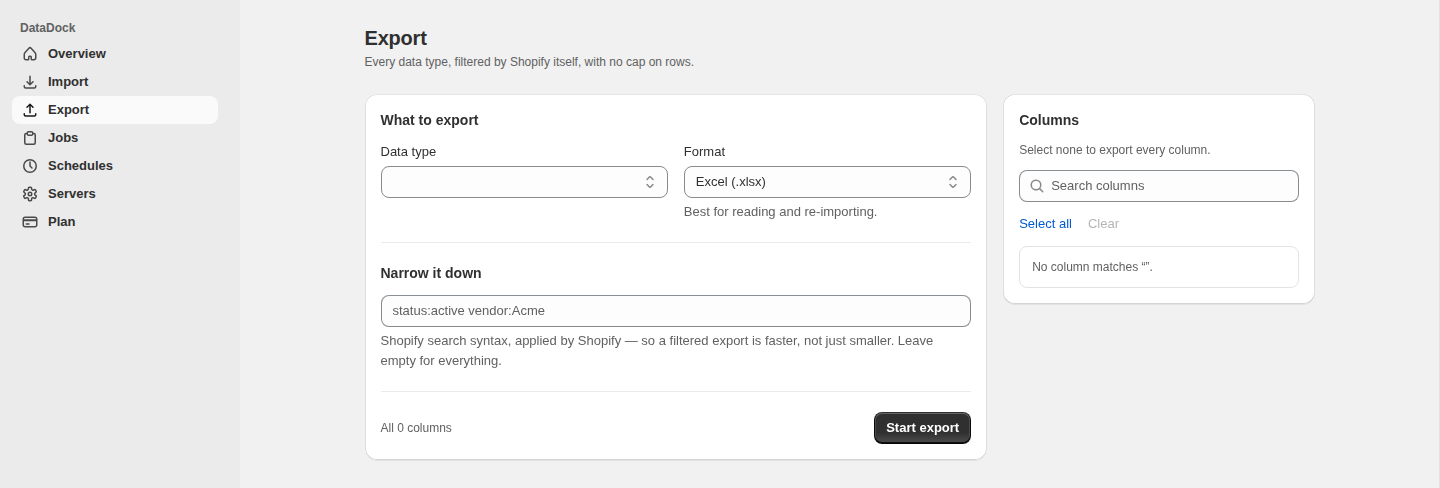
Open Export, choose a data type, and run it. Exports stream from Shopify straight to disk, so catalogue size is not a constraint — and unlike imports, exports are never capped on rows.
Narrowing it down
The filter box takes Shopify's own search syntax — status:active vendor:Acme, and so on. The filter is applied by Shopify rather than after the fact, so a narrowed export is genuinely faster, not merely smaller. Leave it empty to export everything.
Choosing columns
The Columns panel lets you search and tick exactly the columns you want. Select none and you get every column, which is what you want when the export is going to be edited and re-imported — a column that is not in the file cannot be round-tripped.
Format
Excel (.xlsx) is the default and the better choice for anything you intend to edit and re-import. CSV is there for feeding other systems.
Getting the file
- Download it from the job page.
- Share a link. Results are handed out through a signed, time-limited URL that works outside the Shopify admin — so an export can be sent to a supplier or pulled by a build script without giving anyone admin access.
- Deliver it somewhere. Send the finished file to a saved FTP/SFTP server automatically.
Uploaded sheets and result files are kept for 30 days after the job finishes, then swept — they hold the actual personal data. The job record and its rollback history are kept regardless, so a rollback stays available after the file is gone.
An export is the best starting point for an import
Because the exporter and the diff planner render records through the same code, an exported sheet is by definition in the exact shape the importer expects. Editing an export is always safer than authoring a file from scratch.
Schedules
A schedule repeats an import or export on a plain interval. Under Schedules → New schedule you give it a source, a data type and how often to run.
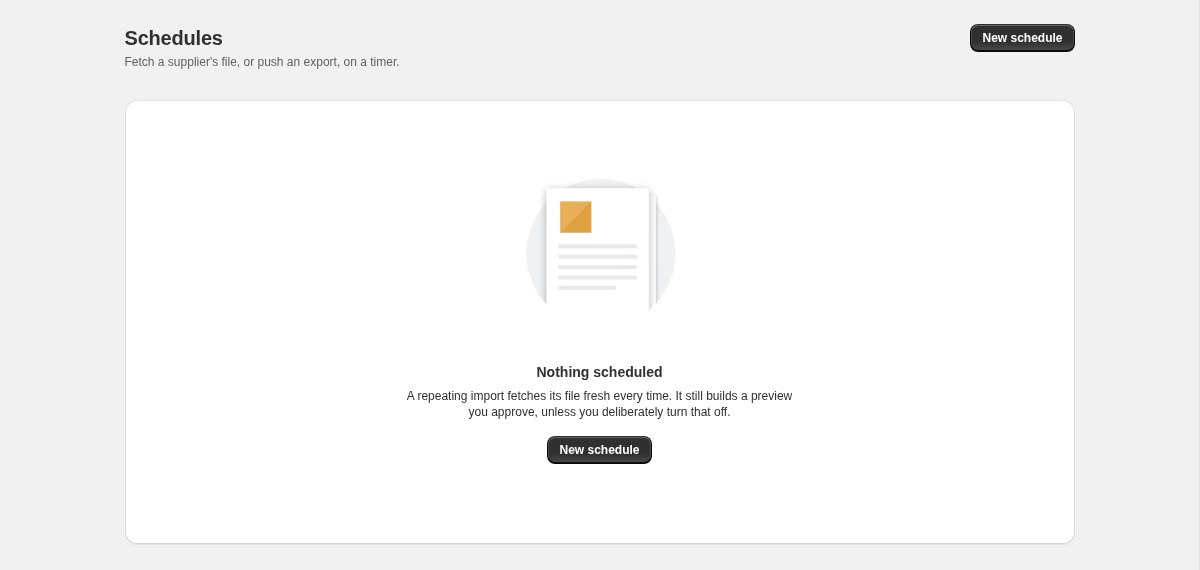
Each run fetches the file fresh — a supplier who overwrites the same path every night is the normal case. And each run still builds a preview that a human approves.
A schedule can be set to apply without approval, and there is a real reason to: an overnight feed nobody is awake to approve. But it means an unreviewed supplier file writes directly to your store. The toggle is off unless you turn it on, and it says exactly what it means when you do. Turn it on only after the same feed has run correctly, with approval, a few times.
Schedules require the Growth plan or above.
Saved servers
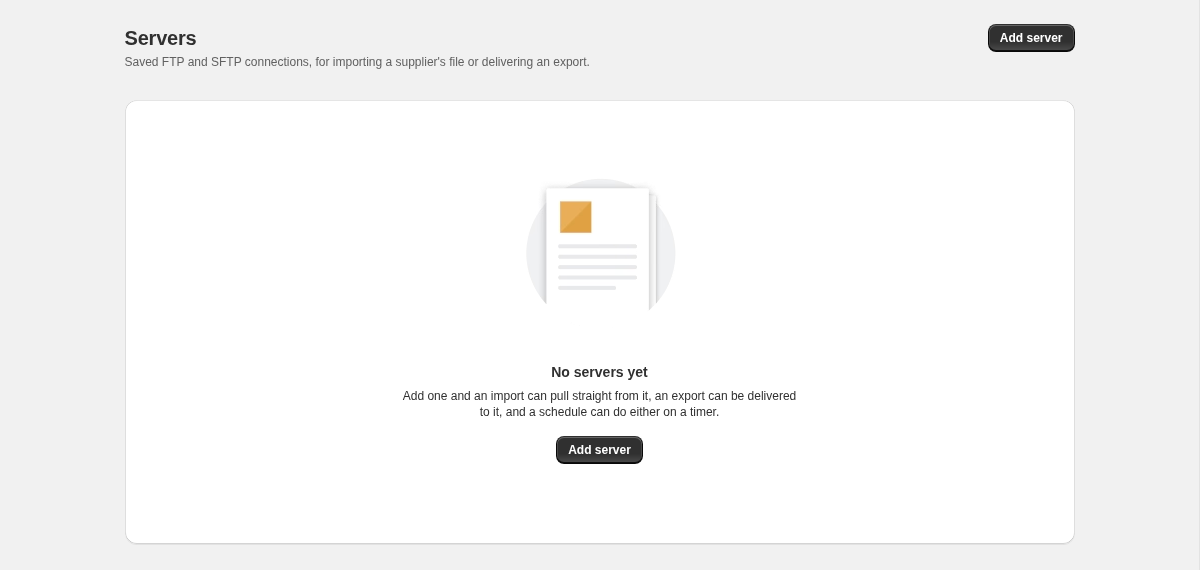
Under Servers you can save an FTP, FTPS or SFTP connection once and then use it in both directions — pull a supplier's file for an import, or have an export delivered to it.
How credentials are held
- Encrypted at rest with AES-256-GCM.
- Never returned to the browser. Once saved, a password cannot be read back out of the app — only replaced.
- Each server is scoped to your shop alone.
DataDock will not connect to a host on a private network — localhost, 10.x, 192.168.x and the rest are blocked, and the check is repeated on every redirect hop. This is what stops the app being talked into fetching something inside a network it should not reach. A server on your own LAN is therefore not reachable; it needs to be exposed on a public hostname.
Saved servers require the Growth plan or above.
What you can import and export
Sixteen sheets, 233 columns. The C / U / D columns show what Shopify's API actually permits — not what DataDock wishes it could do. The planner refuses a row it could never apply rather than failing partway through a run.
| Sheet | C | U | D | Notes |
|---|---|---|---|---|
| Products | ✓ | ✓ | ✓ | Variants, options and images. One row per variant. |
| Collections | ✓ | ✓ | ✓ | Manual and automated. Automation rules are one per row. |
| Customers | ✓ | ✓ | ✓ | Addresses are one per row. |
| Orders | ✓ | ✓ | ✓ | Full export. Shopify only permits email, note, tags and metafield edits on existing orders. |
| Draft Orders | ✓ | ✓ | ✓ | Fully writable, including line items. |
| Inventory | · | ✓ | · | One row per variant × location. Update only. |
| Discounts | ✓ | ✓ | ✓ | Exports every kind; writes basic code discounts. |
| Companies | ✓ | ✓ | ✓ | B2B. Locations are one per row. |
| Pages | ✓ | ✓ | ✓ | Online store pages. |
| Blogs | ✓ | ✓ | ✓ | |
| Blog Posts | ✓ | ✓ | ✓ | Movable between blogs. |
| Redirects | ✓ | ✓ | ✓ | Identity is the source path. |
| Metaobjects | ✓ | ✓ | ✓ | Needs a type. Fields are Field: key columns. |
| Menus | ✓ | ✓ | ✓ | Nesting is expressed with a Level column. |
| Files | ✓ | ✓ | ✓ | Store files and media. |
| Payouts | · | · | · | Export only — Shopify has no write API for payouts. |
Metafield columns are available on every sheet above, as dynamic Metafield: namespace.key headers, on every plan including Demo.
Plans and caps
Three plans. There is no trial on the paid plans, because Demo is the trial — and it is not a crippled one.
- 10 records per sheet (2 for menus)
- Every data type, import and export
- Diff preview & one-click rollback
- Unlimited metafield columns
- 5,000 products · 2,000 customers · 10,000 files per sheet
- Import from links, Google Sheets, FTP/SFTP
- Saved field mappings
- Scheduled imports and exports
- Everything in Growth, with no record caps
- Whole-catalogue migrations in one file
- Priority support
How the caps actually count
- Per file, not per month. There is no monthly quota to run out of mid-migration.
- Records, not rows. A product with twenty variants is one product, not twenty.
- Checked before anything is written. A file over the cap is refused up front, naming the count and the limit — an import never stops halfway through.
Growth's other per-file limits: 300 collections, 1,000 orders, 1,000 draft orders, 5,000 inventory rows, 300 discounts, 50 companies, 50 pages, 50 blogs, 50 blog posts, 50 metaobjects, 10,000 redirects, 366 payout rows, and unlimited menus.
When something goes wrong
| What you see | What it means |
|---|---|
| The preview wants to create records that already exist | The identity column is not matching — usually a renamed or missing handle/SKU column. Map it under Columns we don't know and re-check. |
| Thousands of unexpected changes on a re-import | Almost always the blank-cell toggle left on, or a column that was deleted from the sheet rather than left blank. Do not approve — check How cells are read. |
| “This file has N records; the Demo plan allows 10 per file” | The cap is per file. Split the file, or upgrade. Nothing was written. |
| Rows reported as impossible on an order import | Shopify only allows email, note, tags and metafields to be edited on an existing order. Those rows are refused rather than half-applied. |
| A product imported without its image | The image URL was unreachable. It is dropped and named on the row; the rest of the record still applied. Fix the URL and re-import just that row. |
| A link import fails with a host error | The address resolves to a private network, which is refused on every redirect hop. Expose the file on a public host. |
| Order export stops at 60 days | Full history needs read_all_orders, which Shopify grants per listing. Contact support. |
| A job sits queued while another runs | Deliberate. One store never takes more than one worker at a time — two imports against the same store would interleave their rollback journals. |
Export first, edit the export, re-import it. Read the tally before the rows. Approve nothing you did not expect. Everything else in this handbook is detail.